Web Browsers Are Not Always Secure by Default
Many of us are shocked to hear that web browsers aren’t as secure as we assume. “Often, the web browser that comes with an operating system is not set up in a secure default configuration,” according to The Cybersecurity & Infrastructure Security Agency (CISA). “Many web browsers are configured to provide increased functionality at the cost of decreased security.” Since many web browsers don’t come out of the box with the highest security settings, neglecting to adjust them puts you at risk. When you don’t think before you click, certain links could expose you to cyber threats! So how do you configure your web browser for secure searching and enable security functionality to better protect your system? Here are a few tips for safe surfing on a secure browser:
1. Check Your Browser’s Security Settings
When you are using Internet Explorer, Mozilla Firefox, Apple Safari, Google Chrome, etc., it’s important to follow the search engine provider’s recommended security practices. While different web browsers have different security settings, most allow you to enable “Safe Browsing” at a minimum. Google Chrome, for instance, can alert you when a website you’re navigating to could be harmful. This is a feature you don’t want to miss! Follow the links below for more detailed information on how to update your preferred web browser security settings:2. Keep Your Web Browser Up to Date
Like applications on your phone, web browsers must be frequently updated to catch emerging security vulnerabilities. Your browser will show different versions of the latest patch. Here’s a picture of Google Chrome for reference: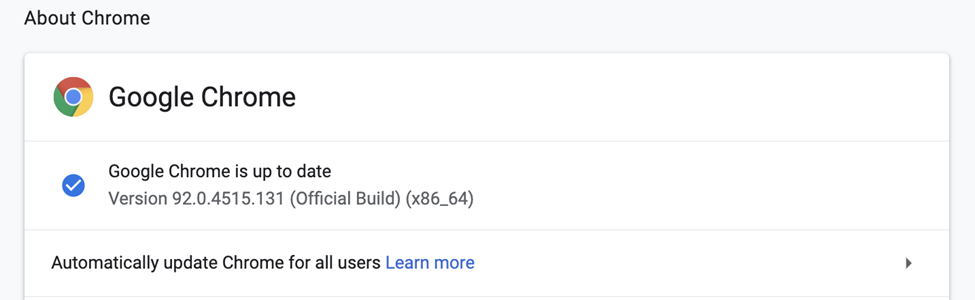 This settings page puts a blue checkmark next to the version number when your browser is up to date. Most popular web browsers allow you to enable “automatic updates” as new versions are made available. To protect your browser, check the “About” menu option to see if yours is current and enable automatic updates.
3. Look for Signs of a Sketchy URL
Websites are often disguised to look like reputable businesses to trick people into clicking on malicious links. Before clicking on a link, hover over it and look for easily missed typos like “WIkipedia” (where the “i” is actually a lowercase “L”), which warn you to stay away. Keep an eye out for the “s” in HTTPS, but know that it doesn’t guarantee that a website is safe. The “s” stands for secure and means that your information is being encrypted; the padlock icon in your address bar indicates this as well. However, roughly 40% of fraudulent sites now have SSL certificates, so this is no longer the be-all-end-all. Be sure to use caution even when seeing the “s,” but certainly don’t trust URLs without it!4. Avoid Clicking on Advertisements
Even if you think you are on a secure website, not all advertisements on web pages are safe. Cybercriminals pay for fraudulent ad spaces at the top of the search engines and on the sidebars of credible web pages to trick users into clicking on malicious links. While advertisers try their best to reject malicious actors’ ads, some slip through the cracks. Clicking on such an ad can instantly install malware or direct you to a spoofed site that looks trustworthy but captures your information for ill will. Instead of falling victim to a phishing ad, take note of the interesting advertisement and make a point to search the brand on your secure web browser later. You can even open a new tab on the spot and do a quick search yourself!