

Before you start
- Open the page where the problem occurs.
- Sign in to the affected account.
- Wait to reproduce the problem until network recording is ready.
- Use test data when possible.
Capture a HAR file in Chrome
1
Open Chrome DevTools
Right-click the page and select Inspect. You can also press F12 or Ctrl+Shift+I on Windows and Linux. On macOS, press Command+Option+I.
2
Open the Network panel
Select Network. Confirm that the round record button is red.
3
Keep requests when needed
If the problem includes a page reload or redirect, select Preserve log.
4
Clear earlier requests
Select Clear network log to remove requests that occurred before the capture.
5
Reproduce the problem
Repeat the steps that caused the problem. Stop after the problem appears.
6
Export the HAR file
Select Export HAR (sanitized) in the Network panel toolbar. Save the file with the 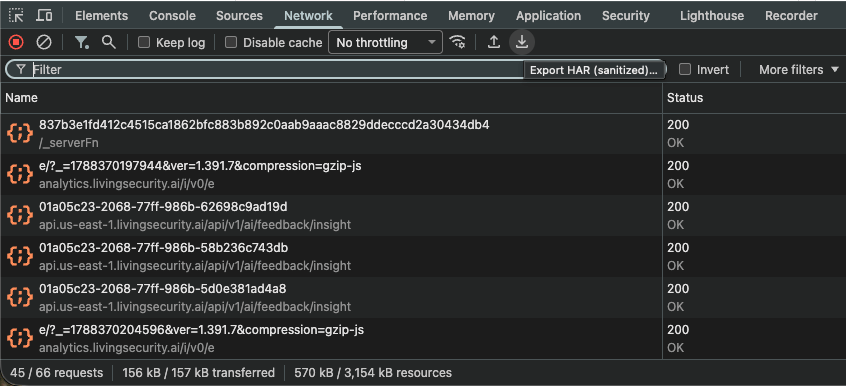
.har extension.Capture a HAR file in Edge
1
Open Edge DevTools
Right-click the page and select Inspect. You can also press F12 or Ctrl+Shift+I on Windows and Linux. On macOS, press Command+Option+I.
2
Open the Network tool
Select Network. Confirm that the round record button is red.
3
Keep requests when needed
If the problem includes a page reload or redirect, select Preserve log.
4
Clear earlier requests
Select Clear network log to remove requests that occurred before the capture.
5
Reproduce the problem
Repeat the steps that caused the problem. Stop after the problem appears.
6
Export the HAR file
Select Export HAR (sanitized) in the Network tool toolbar. Save the file with the 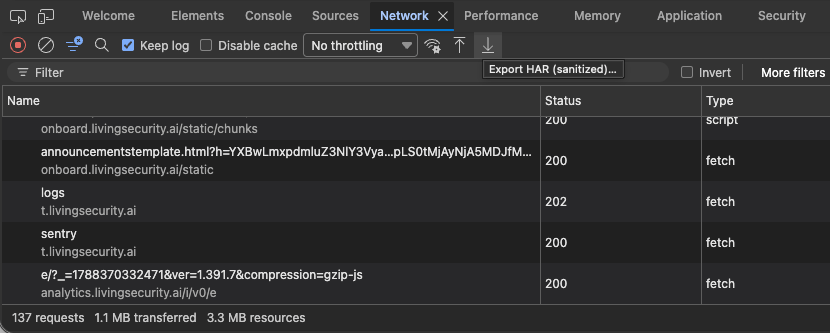
.har extension.Capture a HAR file in Firefox
1
Open Firefox Developer Tools
Right-click the page and select Inspect. You can also press F12 or Ctrl+Shift+I on Windows and Linux. On macOS, press Command+Option+I.
2
Open the Network Monitor
Select Network. Confirm that network recording is active.
3
Keep requests when needed
If the problem includes a page reload or redirect, open the Network Monitor settings and select Persist Logs.
4
Clear earlier requests
Select the trash icon to remove requests that occurred before the capture.
5
Reproduce the problem
Repeat the steps that caused the problem. Stop after the problem appears.
6
Export the HAR file
Right-click a request in the request list and select Save All As HAR. Save the file with the 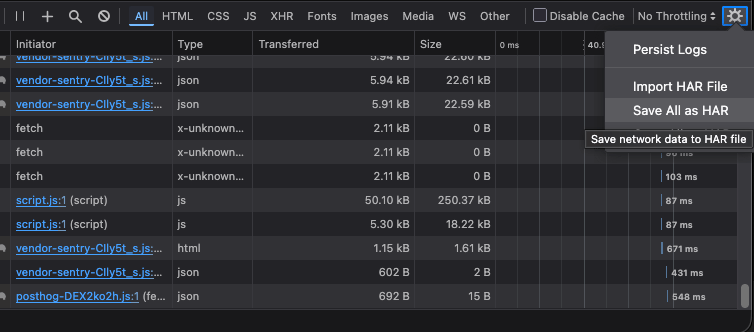
.har extension.Send the HAR file to Support
- Confirm that the file name ends in
.har. - Record the time when the problem occurred, including your time zone.
- Upload the file through the secure method that Living Security Support provides.
- Delete the local copy when your organization’s data-handling policy requires it.