

Overview
Auth0 can contribute normalized user, authentication, MFA, and administrative activity. Reviewed examples include:auth.login.failed— fails to log inmfa.failed— fails MFA challengesauth.login.blocked— login blocked
- Client ID - A unique identifier for your client.
- Client Secret - A confidential key used to authenticate the identity of the application (client).
- HostName - The domain associated with your Auth0 tenant.
- Audience - The audience for the token, which is your API.
- Organization - The organization name or identifier you want the request to be associated with.
Prerequisites:
- You must have an Auth0 account.
Step 1: Finding Your Client Credentials
- Log in to your Auth0 account.
- Navigate to the Application’s Settings page.
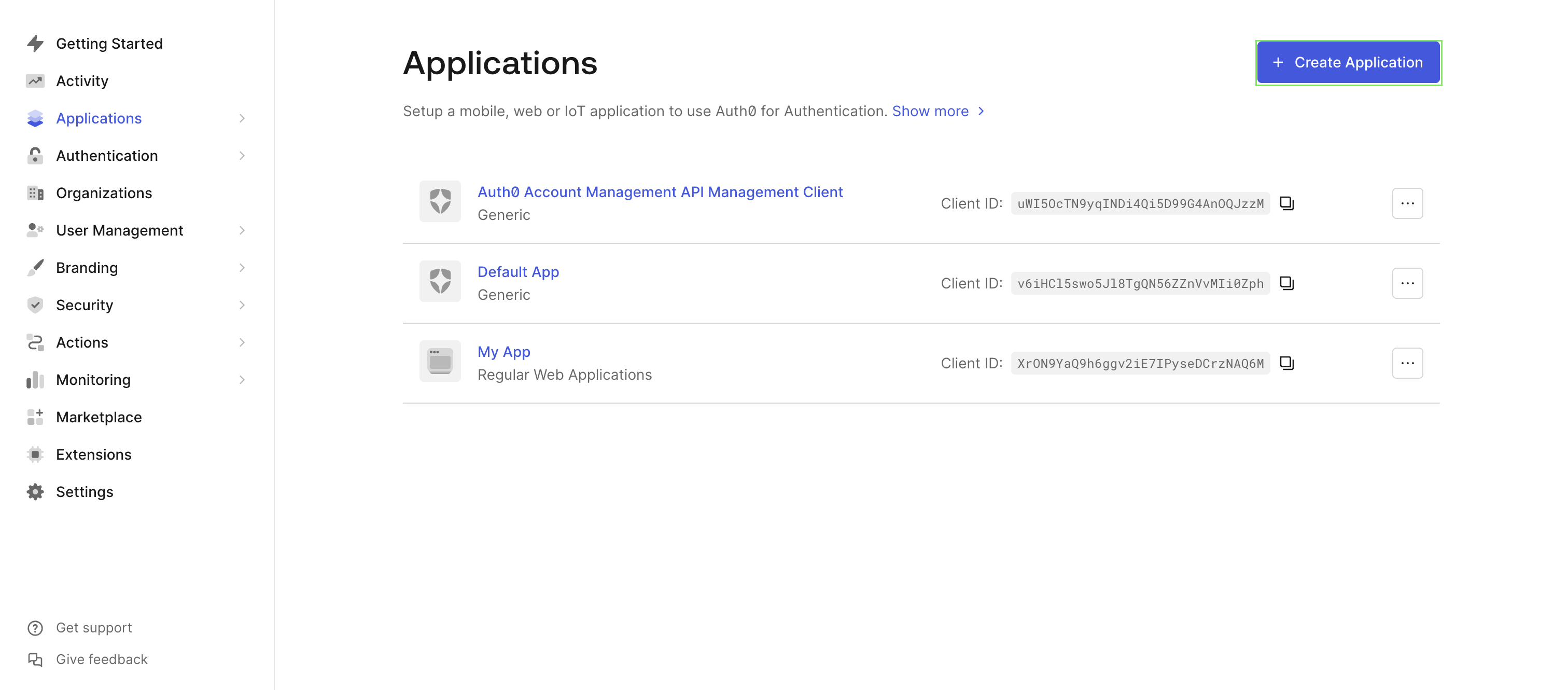
- Click the Create Application button.
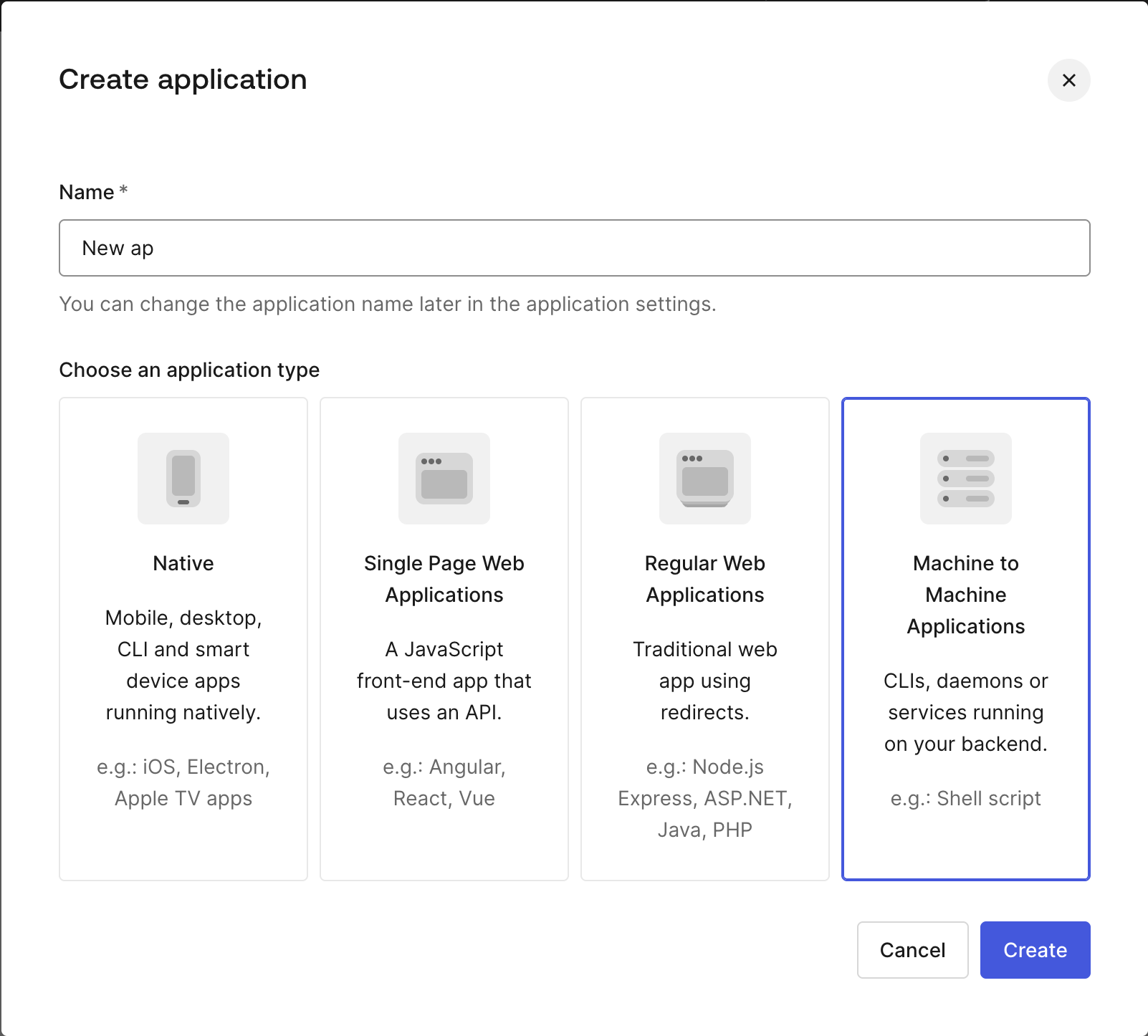
- Add a unique name for your application and select Machine to Machine Applications
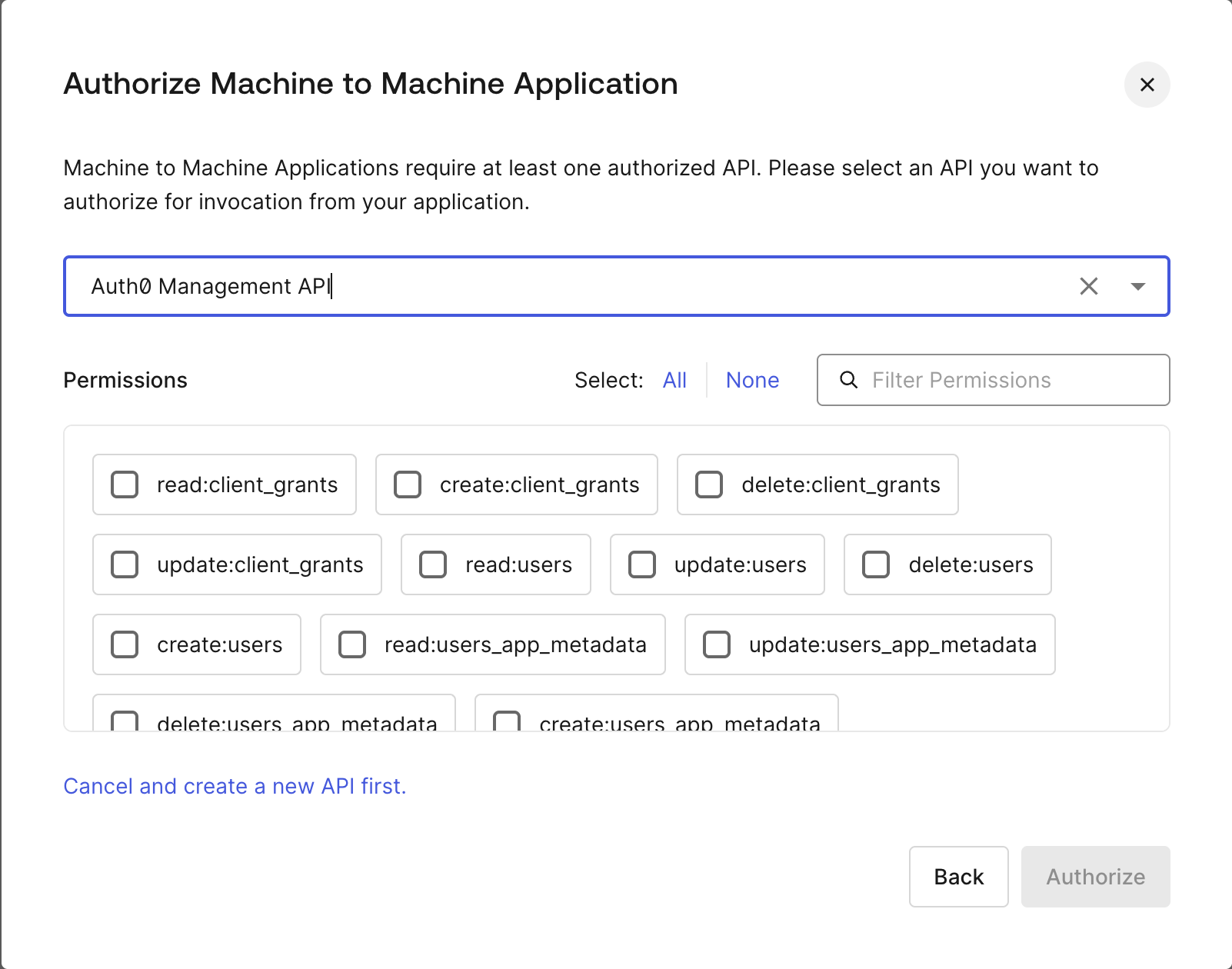
- From the dropdown menu, select Auth0 Management API, then grant
read:usersandread:logs.
- Click Authorize to create your new application.
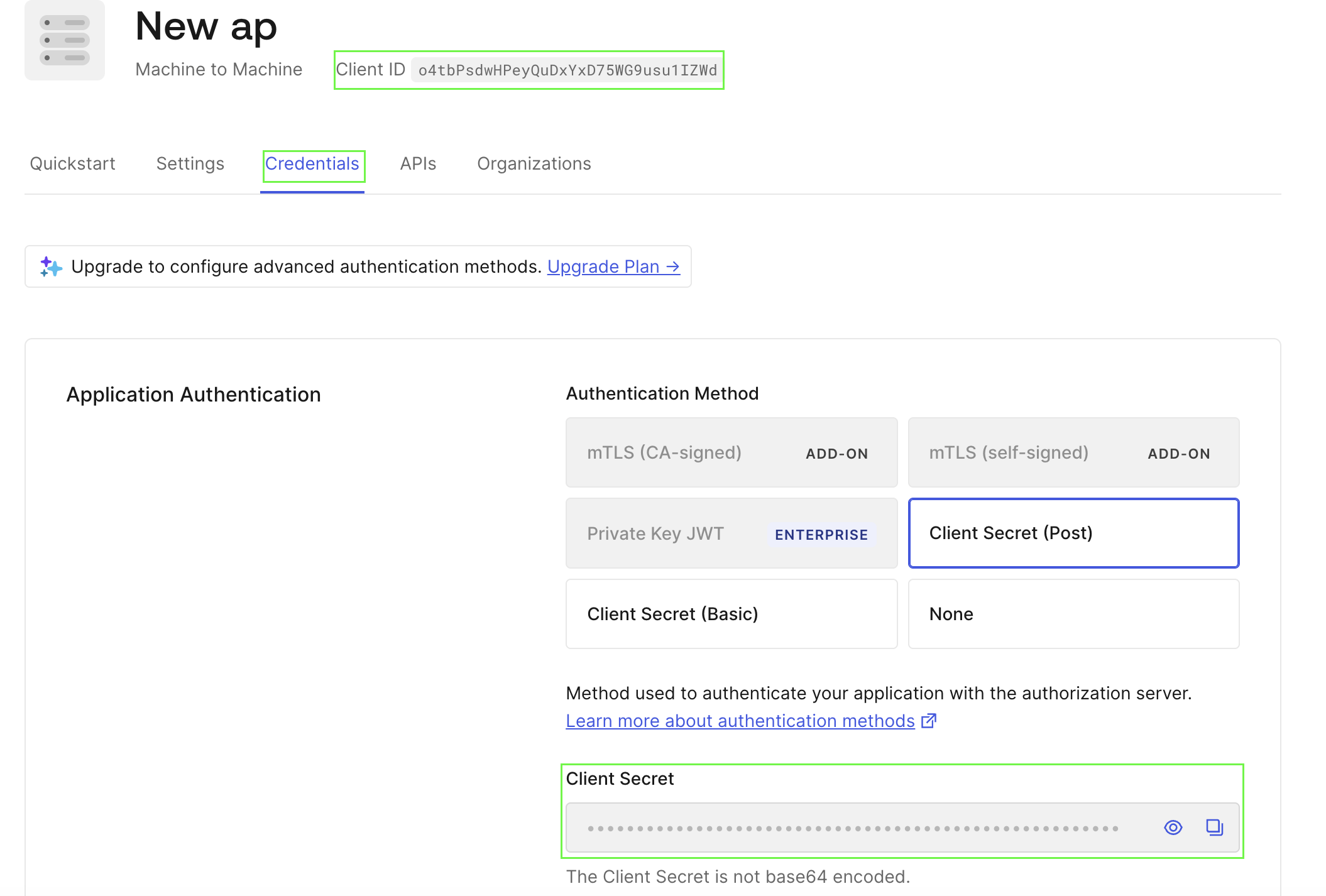
- On the Application page, navigate to the Credentials section. Your Client Secret will be displayed here, and the Client ID can be found at the top of the page.
Step 2: Finding Your HostName
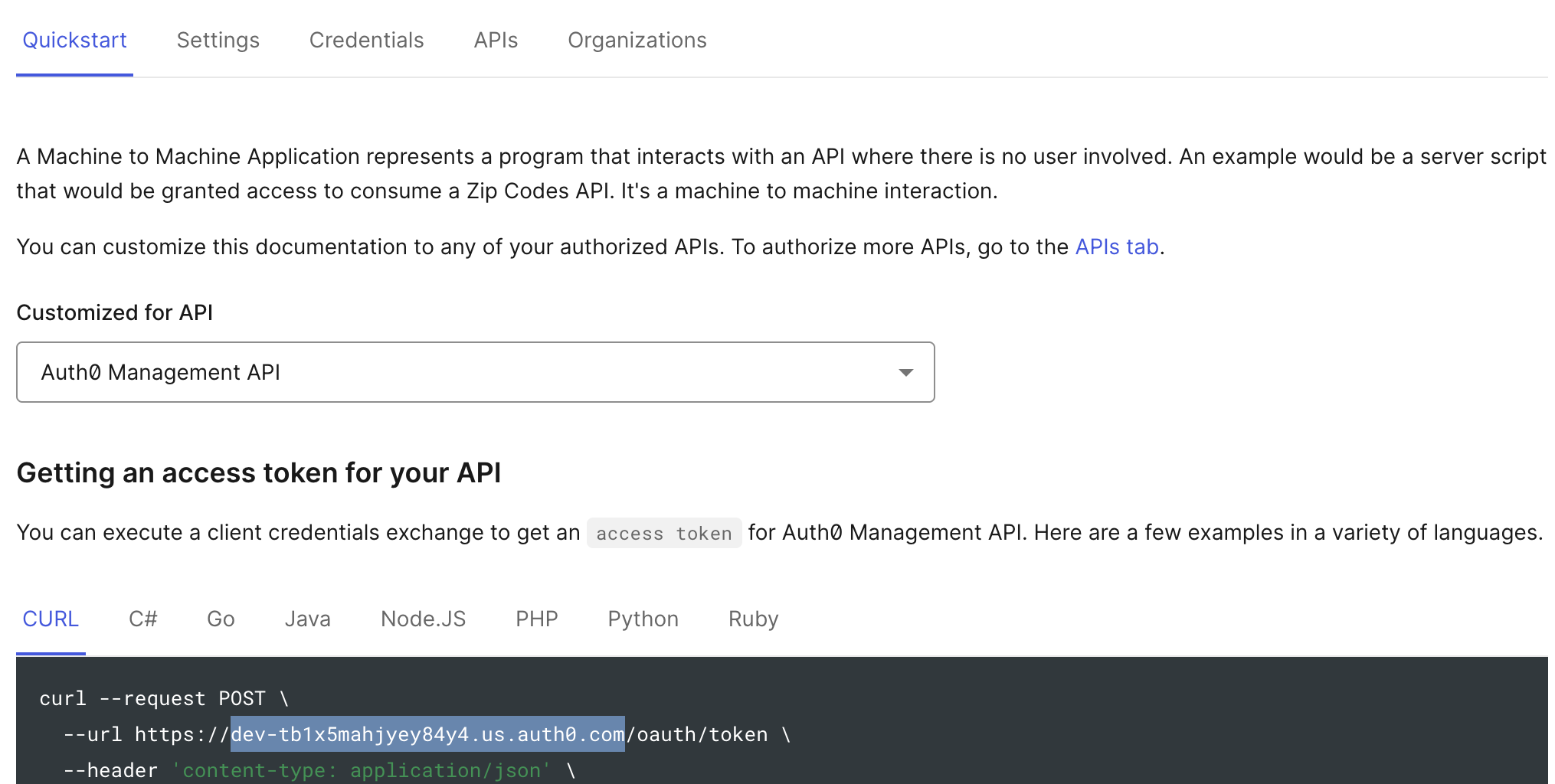
- From the Quickstart tab of your newly created application, Auth0 provides an example request for obtaining an access token. Your HostName is the text that appears after
https://and before/oauth/token. - In the example below, the HostName is
dev-tb1x5mahjyey84y4.us.auth0.com.
Step 3: Finding Your Audience
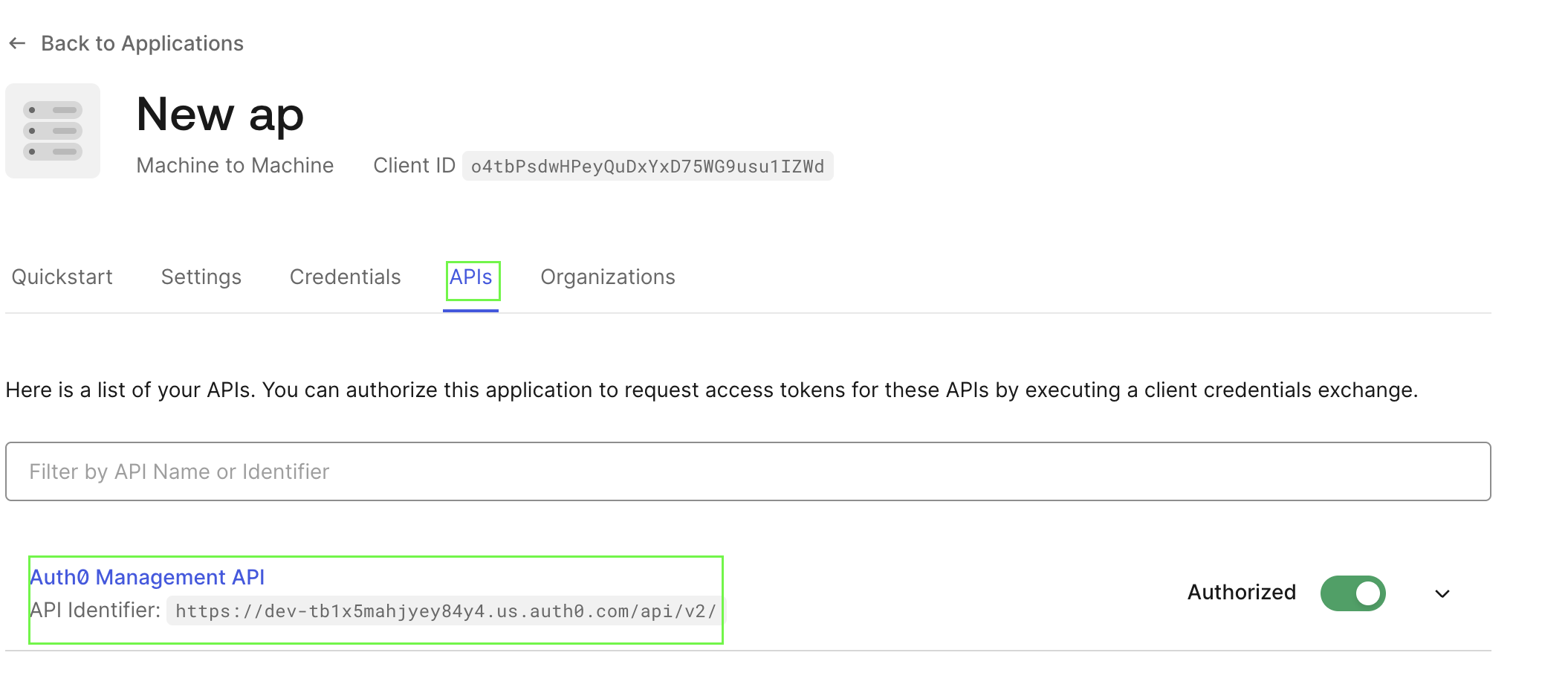
- You can find this in the Identifier field of your newly created application under the APIs tab.
Step 4: Finding Your Organization
Step 5: Enter credentials in the Living Security Platform
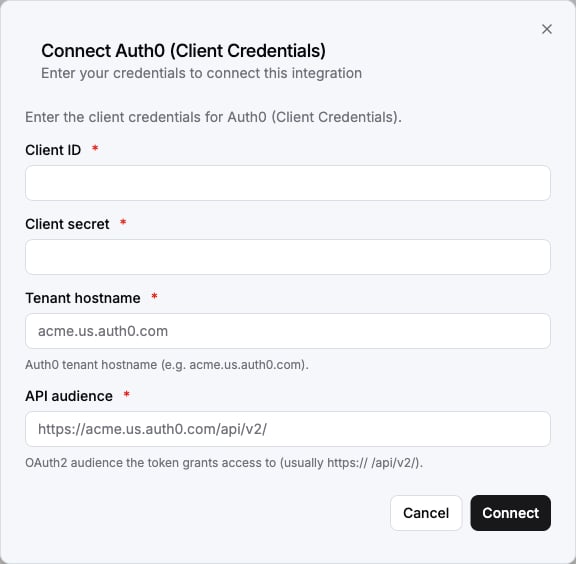
Once you have your Client ID, Client Secret,HostName, Audience and Organization:- Open the form where you need to authenticate with Auth0 (Client Credentials).
- Enter your Client ID, Client Secret, HostName, Audience and Organization in their respective fields.
- Submit the form, and you should be successfully authenticated.
Portions of this documentation are adapted from Nango, used under the Elastic License 2.0.