

What this integration contributes
Proofpoint Security Awareness can contribute training and phishing-simulation outcomes. Reviewed examples include:training.completed— completes security trainingphishing.simulation.attachment.opened— opens phishing-simulation attachmentsemail.suspicious.reported— reports suspicious emails
What Living Security needs
Scopes: Access to Phishing (ThreatSim) and PhishAlarm reporting endpoints
Required role: Super Admin, Reporting Admin, or Reporting API in Proofpoint SAT
Prerequisites
- You must have Super Admin or Reporting Admin access in Proofpoint SAT to generate API tokens.
- The token must be associated with an account that holds one of the required roles.
Part A — In Proofpoint SAT
Your Proofpoint SAT administrator completes these steps.1
Navigate to API Token settings
- Sign in to your Proofpoint Security Awareness Training portal.
- Click your account name or admin menu in the upper right and select Settings.
- In the left navigation, locate Integrations or API and open the Results API or Token Mart page.
The exact navigation path varies by portal version. If you do not see a Token Mart or Results API option, contact your Proofpoint administrator — token generation may require a platform feature to be enabled.
2
Generate a new API token
- Click Generate Token (or Create New Token).
- Enter a descriptive name (e.g.,
Living Security Platform). - Select the appropriate role or access level:
Least-privilege recommendation: Use the Reporting API role if available. This restricts the token to read-only reporting access.
- Save the token.
3
Copy and save your token
Copy the token immediately and store it securely.
4
Identify your regional results host
Select the host that matches your Proofpoint SAT environment:
Enter the host only — no
https:// prefix and no trailing slash.Part B — In the Living Security Platform
The program owner completes this step, or the system admin if using delegated setup.1
Enter the credentials in the Living Security Platform
Completed by whoever holds Living Security access — the program owner, or the system admin if they’ve been invited (delegated setup).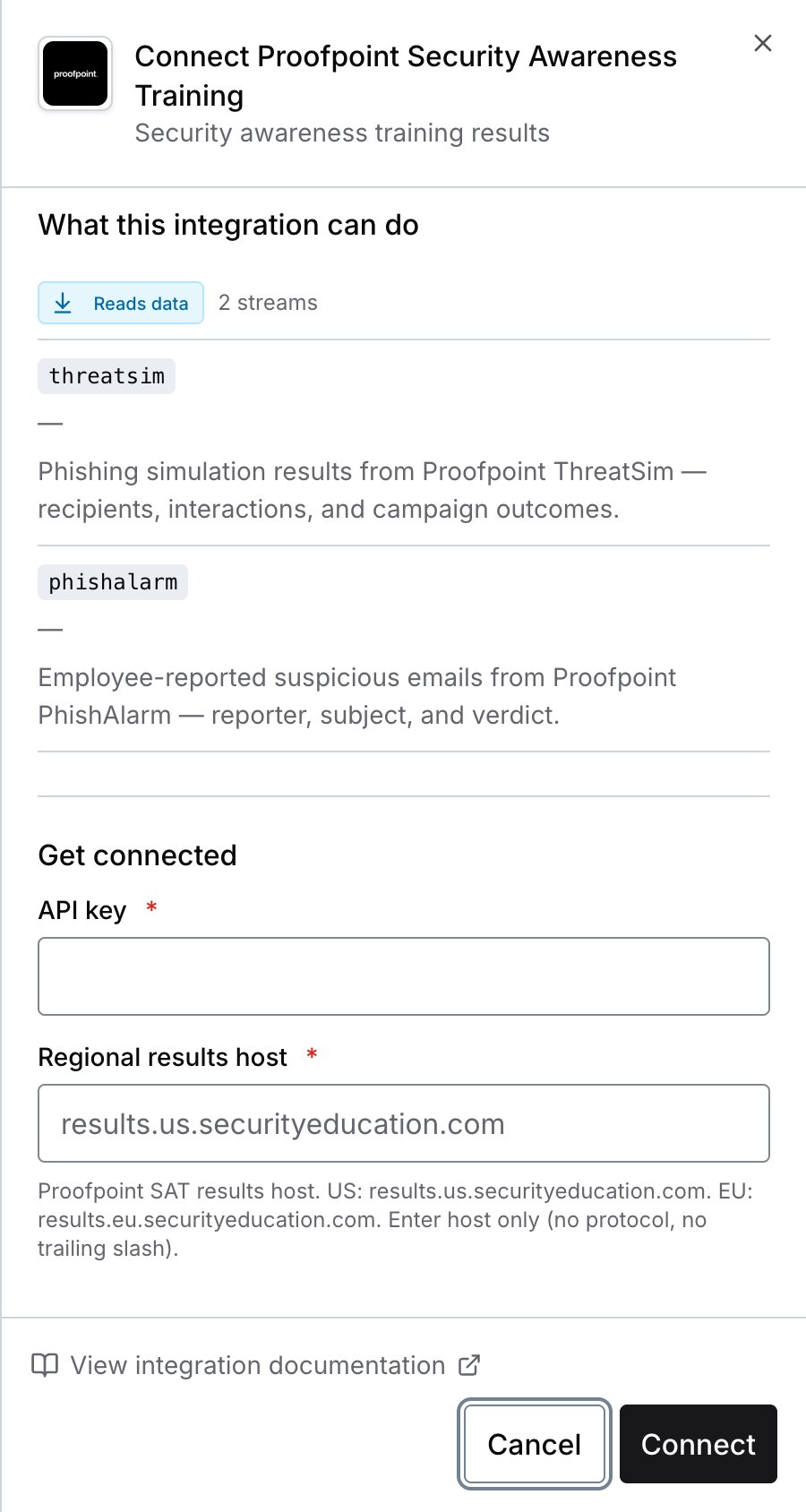
- Open Settings → Integrations. Find the Proofpoint Security Awareness Training tile under Add an integration or in the Catalog tab. Select Connect.
- Fill in the fields below, then click Connect.
When data arrives
Connecting starts both syncs with no extra step: Phishing campaigns (ThreatSim) and Reported emails (PhishAlarm). The first run starts right away and imports up to the last 60 days. After that, each sync runs every 6 hours. To refresh sooner, open Settings → Integrations, select the Proofpoint SAT connection, and click Sync now next to the sync. Each ThreatSim campaign appears as its own campaign. Every recipient gets one delivered event, and a recipient who opened, clicked, submitted data, or reported also gets that outcome.Troubleshooting
403 Forbidden
403 Forbidden
The token lacks access to the required reporting endpoints. Verify the token was created with Super Admin, Reporting Admin, or Reporting API role.
Wrong regional host
Wrong regional host
Data syncs will fail if the regional host doesn’t match your SAT environment. Verify:
- US accounts use
results.us.securityeducation.com - EU accounts use
results.eu.securityeducation.com - AP accounts use
results.ap.securityeducation.com
Token generation not available
Token generation not available
If you don’t see the Token Mart or Results API option in settings, the feature may not be enabled for your account. Contact your Proofpoint administrator or Customer Success Manager.