> ## Documentation Index
> Fetch the complete documentation index at: https://docs.livingsecurity.com/llms.txt
> Use this file to discover all available pages before exploring further.
# 擷取 HAR 檔案
> 在 Chrome、Edge 或 Firefox 中記錄瀏覽器的網路活動,並將其儲存為 HAR 檔案,提供給 Living Security 支援團隊。
HAR(HTTP Archive)檔案會記錄您在重現問題期間,瀏覽器所發出的網路要求。Living Security 支援團隊可使用此檔案調查頁面錯誤、失敗的要求以及回應緩慢的情況。
HAR 檔案可能包含頁面位址、要求與回應內容、表單值、Cookie、授權標頭以及個人資料。請僅擷取受影響的工作流程。切勿在公開管道張貼 HAR 檔案。請僅透過 Living Security 支援團隊提供的安全方式分享。
## 開始之前
* 開啟發生問題的頁面。
* 登入受影響的帳戶。
* 請等到網路記錄準備就緒後,再重現問題。
* 盡可能使用測試資料。
## 在 Chrome 中擷取 HAR 檔案
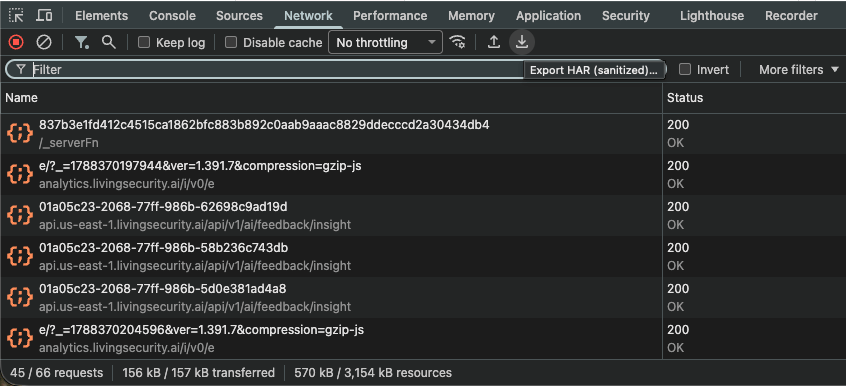
在頁面上按一下滑鼠右鍵,然後選取 **Inspect**。您也可以在 Windows 和 Linux 上按 **F12** 或 **Ctrl+Shift+I**。在 macOS 上,請按 **Command+Option+I**。
選取 **Network**。確認圓形的錄製按鈕為紅色。
如果問題涉及頁面重新載入或重新導向,請選取 **Preserve log**。
選取 **Clear network log**,以移除擷取之前發生的要求。
重複導致問題的步驟。問題出現後請停止操作。
選取 Network 面板工具列中的 **Export HAR (sanitized)**。儲存檔案時,請使用 `.har` 副檔名。
 ## 在 Edge 中擷取 HAR 檔案
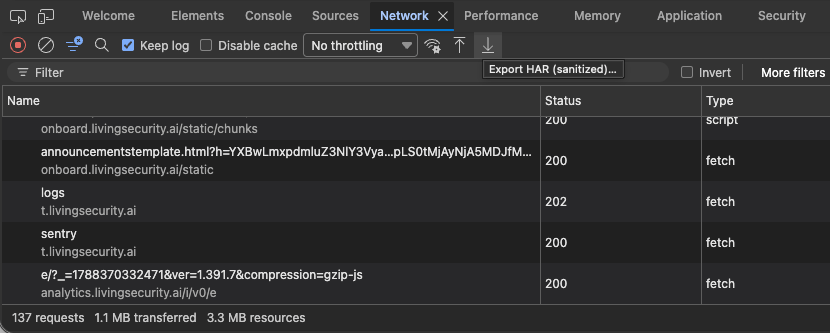
在頁面上按一下滑鼠右鍵,然後選取 **Inspect**。您也可以在 Windows 和 Linux 上按 **F12** 或 **Ctrl+Shift+I**。在 macOS 上,請按 **Command+Option+I**。
選取 **Network**。確認圓形的錄製按鈕為紅色。
如果問題涉及頁面重新載入或重新導向,請選取 **Preserve log**。
選取 **Clear network log**,以移除擷取之前發生的要求。
重複導致問題的步驟。問題出現後請停止操作。
選取 Network 工具列中的 **Export HAR (sanitized)**。儲存檔案時,請使用 `.har` 副檔名。
## 在 Edge 中擷取 HAR 檔案
在頁面上按一下滑鼠右鍵,然後選取 **Inspect**。您也可以在 Windows 和 Linux 上按 **F12** 或 **Ctrl+Shift+I**。在 macOS 上,請按 **Command+Option+I**。
選取 **Network**。確認圓形的錄製按鈕為紅色。
如果問題涉及頁面重新載入或重新導向,請選取 **Preserve log**。
選取 **Clear network log**,以移除擷取之前發生的要求。
重複導致問題的步驟。問題出現後請停止操作。
選取 Network 工具列中的 **Export HAR (sanitized)**。儲存檔案時,請使用 `.har` 副檔名。
 ## 在 Firefox 中擷取 HAR 檔案
在頁面上按一下滑鼠右鍵,然後選取 **Inspect**。您也可以在 Windows 和 Linux 上按 **F12** 或 **Ctrl+Shift+I**。在 macOS 上,請按 **Command+Option+I**。
選取 **Network**。確認網路記錄已啟用。
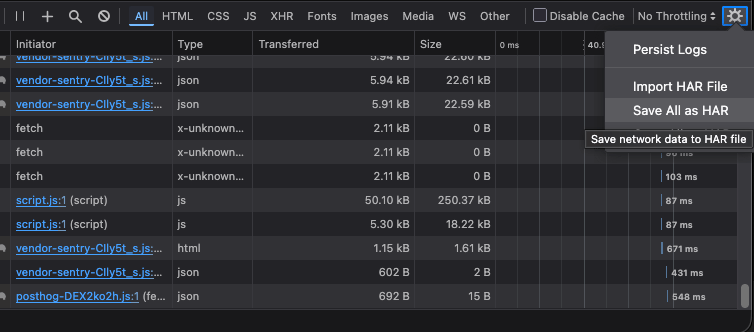
如果問題涉及頁面重新載入或重新導向,請開啟 Network Monitor 的設定,然後選取 **Persist Logs**。
選取垃圾桶圖示,以移除擷取之前發生的要求。
重複導致問題的步驟。問題出現後請停止操作。
在要求清單中的任一要求上按一下滑鼠右鍵,然後選取 **Save All As HAR**。儲存檔案時,請使用 `.har` 副檔名。
## 在 Firefox 中擷取 HAR 檔案
在頁面上按一下滑鼠右鍵,然後選取 **Inspect**。您也可以在 Windows 和 Linux 上按 **F12** 或 **Ctrl+Shift+I**。在 macOS 上,請按 **Command+Option+I**。
選取 **Network**。確認網路記錄已啟用。
如果問題涉及頁面重新載入或重新導向,請開啟 Network Monitor 的設定,然後選取 **Persist Logs**。
選取垃圾桶圖示,以移除擷取之前發生的要求。
重複導致問題的步驟。問題出現後請停止操作。
在要求清單中的任一要求上按一下滑鼠右鍵,然後選取 **Save All As HAR**。儲存檔案時,請使用 `.har` 副檔名。
 ## 將 HAR 檔案傳送給支援團隊
1. 確認檔案名稱以 `.har` 結尾。
2. 記錄問題發生的時間,並包含您的時區。
3. 透過 Living Security 支援團隊提供的安全方式上傳檔案。
4. 若貴組織的資料處理政策有要求,請刪除本機副本。
Chrome 和 Edge 會從經過淨化的 HAR 匯出檔中移除部分敏感標頭,但其他敏感資料仍可能保留在檔案中。如果支援團隊需要包含敏感資料的 HAR 檔案,支援團隊會另行提供擷取與傳輸的說明。
This documentation is built and hosted on [Mintlify](https://mintlify.com), a developer documentation platform.
## 將 HAR 檔案傳送給支援團隊
1. 確認檔案名稱以 `.har` 結尾。
2. 記錄問題發生的時間,並包含您的時區。
3. 透過 Living Security 支援團隊提供的安全方式上傳檔案。
4. 若貴組織的資料處理政策有要求,請刪除本機副本。
Chrome 和 Edge 會從經過淨化的 HAR 匯出檔中移除部分敏感標頭,但其他敏感資料仍可能保留在檔案中。如果支援團隊需要包含敏感資料的 HAR 檔案,支援團隊會另行提供擷取與傳輸的說明。
This documentation is built and hosted on [Mintlify](https://mintlify.com), a developer documentation platform.