> ## Documentation Index
> Fetch the complete documentation index at: https://docs.livingsecurity.com/llms.txt
> Use this file to discover all available pages before exploring further.
# CrowdStrike Falcon
> Connect CrowdStrike Falcon to import endpoint detection and threat data.
export const ConnectInPlatform = ({tile, children}) =>
Completed by whoever holds Living Security access — the program owner, or the system
admin if they've been invited (delegated setup).
-
Go to Settings → Integrations → Catalog, find the{' '}
{tile} tile, click Connect.
-
Fill in the fields below, then click Connect.
{children}
;
export const SystemAdminBanner = ({system, recommendDelegated}) =>
This guide is for your {system} administrator. It covers creating API
credentials inside {system}, which requires admin access to {system} — not to the
Living Security Platform.
If you're the Living Security program owner and don't administer {system},
send this page to whoever does. They complete Part A and hand the credentials back to you
(or enter them directly if you've invited them into the platform).
{recommendDelegated && <>
{' '}Because setup produces sensitive key material, we recommend the{' '}
delegated setup path so the secret is never sent back to you.
}
;
## What Living Security needs
| Credential | Description |
| ----------------- | -------------------------------------------------------- |
| **Client ID** | The unique identifier for your API client |
| **Client Secret** | The confidential key used to authenticate the API client |
| **Base URL** | The API base URL for your CrowdStrike cloud environment |
**Scopes:** **Alerts: Read** and **Hosts: Read** — Alerts backs the alerts sync (`/alerts/queries/alerts/v2`) and Hosts backs the device sync (`/devices/queries/devices-scroll/v1`).
**Required role:** **Falcon Administrator** or equivalent with API client management permissions
### Prerequisites
* You must have **Falcon Administrator** access or equivalent permissions to create API clients in the CrowdStrike Falcon console.
***
## Part A — In CrowdStrike Falcon
*Your CrowdStrike administrator completes these steps.*
1. Log in to your [CrowdStrike Falcon console](https://falcon.crowdstrike.com/).
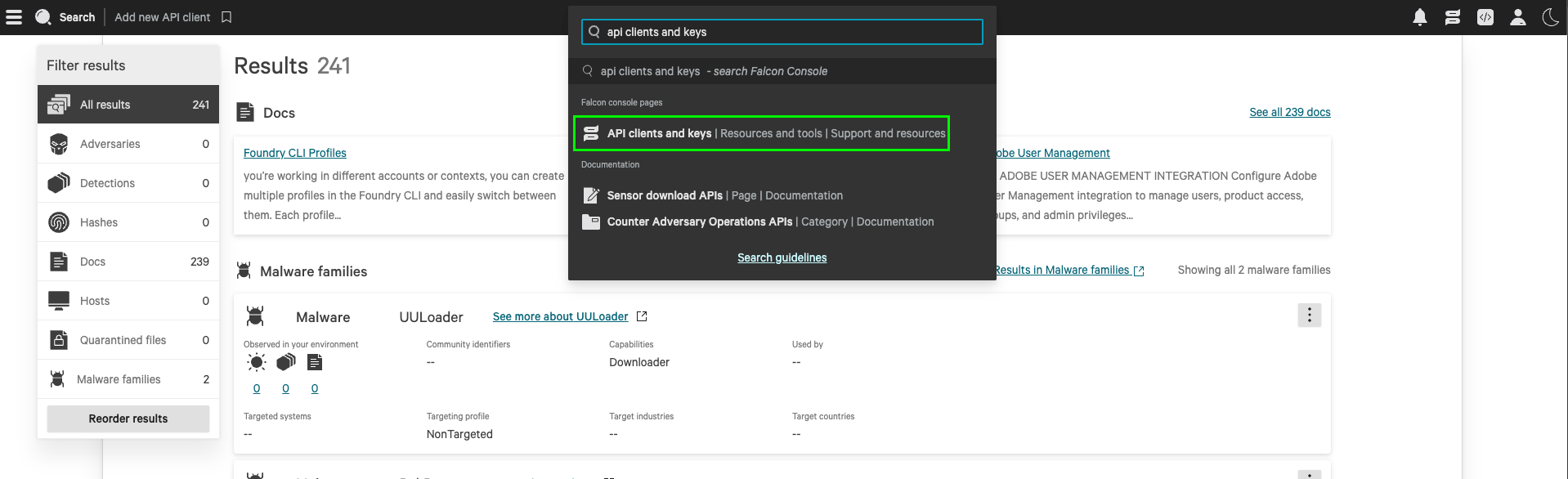
2. From the search toolbar, search for **API Clients and Keys** and select it.
 1. Click **Create API Client**.
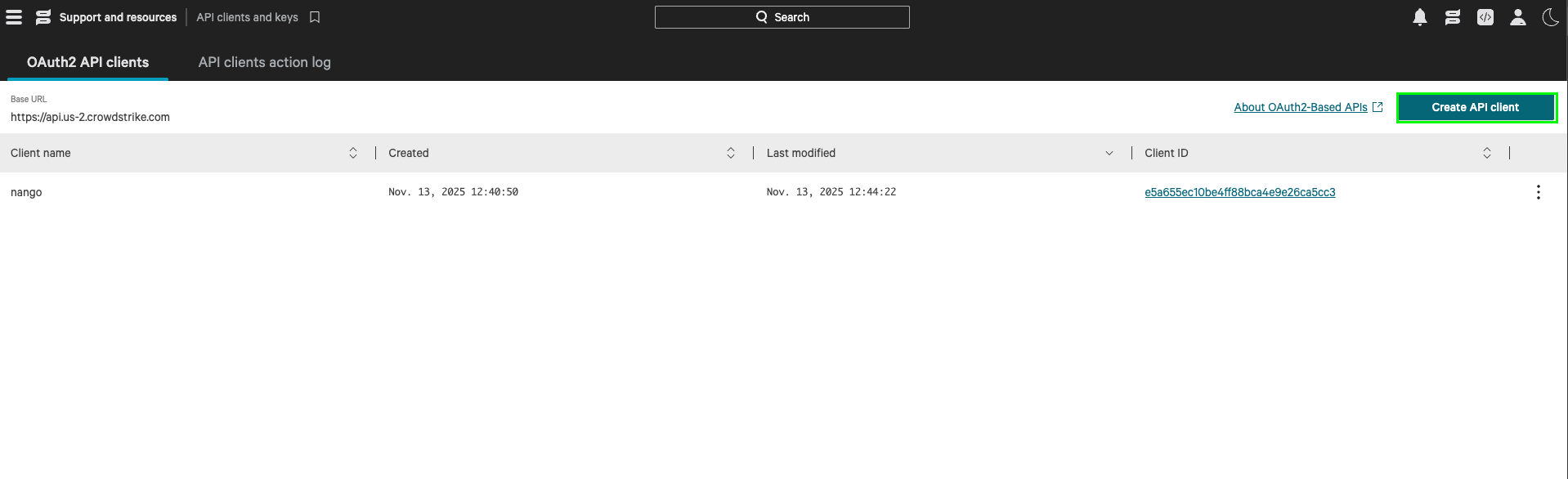 2. Enter a **Name** (e.g., `Living Security Platform`).
3. Enter a **Description** (e.g., `Read access for Living Security HRM platform`).
4. Under **API Scopes**, enable **Read** for **Alerts** and **Hosts**.
5. Click **Create**.
After creation, CrowdStrike displays your **Client ID**, **Client Secret**, and **Base URL**.
2. Enter a **Name** (e.g., `Living Security Platform`).
3. Enter a **Description** (e.g., `Read access for Living Security HRM platform`).
4. Under **API Scopes**, enable **Read** for **Alerts** and **Hosts**.
5. Click **Create**.
After creation, CrowdStrike displays your **Client ID**, **Client Secret**, and **Base URL**.
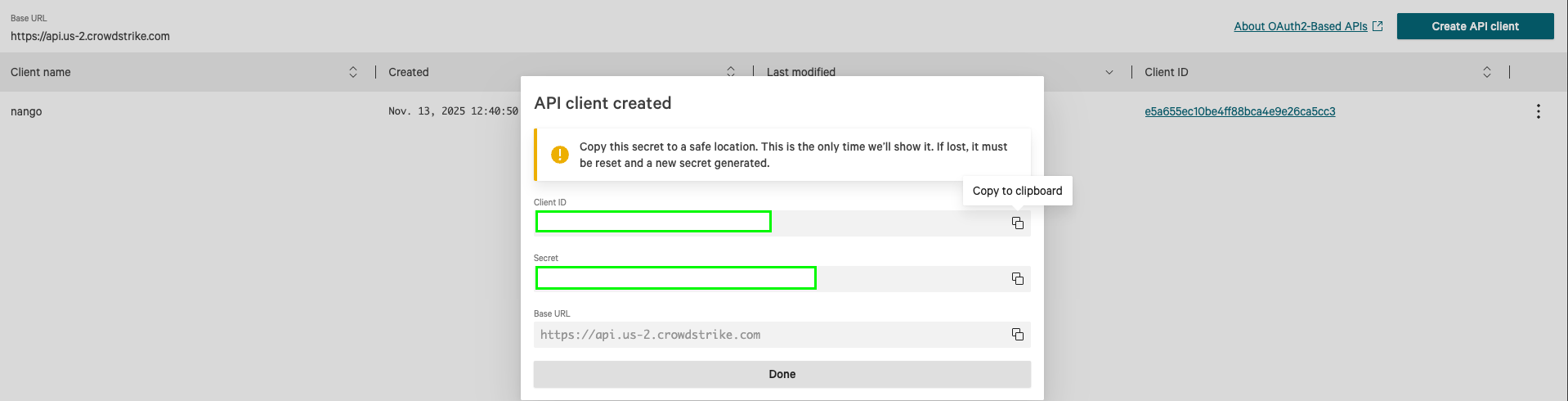 **Copy all three values immediately** and store them securely.
The **Client Secret** is displayed only once. If you navigate away without copying it, you must delete the API client and create a new one.
The **Base URL** is the domain portion (e.g., `api.crowdstrike.com`) without the `https://` prefix. Common base URLs include:
* US-1: `api.crowdstrike.com`
* US-2: `api.us-2.crowdstrike.com`
* EU-1: `api.eu-1.crowdstrike.com`
* US-GOV-1: `api.laggar.gcw.crowdstrike.com`
***
## Part B — In the Living Security Platform
*The program owner completes this step, or the system admin if using delegated setup.*
| Field | Value |
| ----------------- | -------------------------------------------------------------- |
| **Base URL** | The Base URL from Part A, Step 3 (e.g., `api.crowdstrike.com`) |
| **Client ID** | The Client ID from Part A, Step 3 |
| **Client Secret** | The Client Secret from Part A, Step 3 |
**Copy all three values immediately** and store them securely.
The **Client Secret** is displayed only once. If you navigate away without copying it, you must delete the API client and create a new one.
The **Base URL** is the domain portion (e.g., `api.crowdstrike.com`) without the `https://` prefix. Common base URLs include:
* US-1: `api.crowdstrike.com`
* US-2: `api.us-2.crowdstrike.com`
* EU-1: `api.eu-1.crowdstrike.com`
* US-GOV-1: `api.laggar.gcw.crowdstrike.com`
***
## Part B — In the Living Security Platform
*The program owner completes this step, or the system admin if using delegated setup.*
| Field | Value |
| ----------------- | -------------------------------------------------------------- |
| **Base URL** | The Base URL from Part A, Step 3 (e.g., `api.crowdstrike.com`) |
| **Client ID** | The Client ID from Part A, Step 3 |
| **Client Secret** | The Client Secret from Part A, Step 3 |
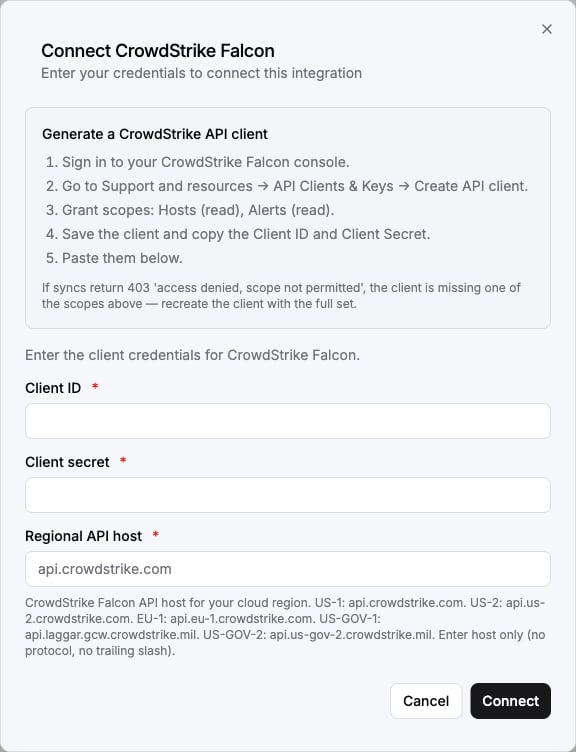 You are now connected to CrowdStrike Falcon.
***
## Troubleshooting
The credentials are invalid. Check:
1. Client ID and Client Secret are correct
2. Client Secret has not been rotated or revoked
3. Base URL matches your CrowdStrike cloud environment
The API client is missing required scopes. Verify that **Alerts: Read** and **Hosts: Read** are enabled on the API client in the CrowdStrike console.
Each CrowdStrike cloud environment has a different API base URL. Verify you're using the correct URL for your tenant:
* US-1: `api.crowdstrike.com`
* US-2: `api.us-2.crowdstrike.com`
* EU-1: `api.eu-1.crowdstrike.com`
***
Portions of this documentation are adapted from [Nango](https://nango.dev/docs/), used under the [Elastic License 2.0](https://github.com/NangoHQ/nango?tab=License-1-ov-file#readme).
You are now connected to CrowdStrike Falcon.
***
## Troubleshooting
The credentials are invalid. Check:
1. Client ID and Client Secret are correct
2. Client Secret has not been rotated or revoked
3. Base URL matches your CrowdStrike cloud environment
The API client is missing required scopes. Verify that **Alerts: Read** and **Hosts: Read** are enabled on the API client in the CrowdStrike console.
Each CrowdStrike cloud environment has a different API base URL. Verify you're using the correct URL for your tenant:
* US-1: `api.crowdstrike.com`
* US-2: `api.us-2.crowdstrike.com`
* EU-1: `api.eu-1.crowdstrike.com`
***
Portions of this documentation are adapted from [Nango](https://nango.dev/docs/), used under the [Elastic License 2.0](https://github.com/NangoHQ/nango?tab=License-1-ov-file#readme).