> ## Documentation Index
> Fetch the complete documentation index at: https://docs.livingsecurity.com/llms.txt
> Use this file to discover all available pages before exploring further.
# Capture a HAR file
> Record browser network activity in Chrome, Edge, or Firefox and save it as a HAR file for Living Security Support.
A HAR, or HTTP Archive, file records the network requests that your browser makes while you reproduce a problem. Living Security Support can use this file to investigate page errors, failed requests, and slow responses.
A HAR file can contain page addresses, request and response content, form values, cookies, authorization headers, and personal data. Capture only the affected workflow. Never post a HAR file in a public channel. Share it only through the secure method that Living Security Support provides.
## Before you start
* Open the page where the problem occurs.
* Sign in to the affected account.
* Wait to reproduce the problem until network recording is ready.
* Use test data when possible.
## Capture a HAR file in Chrome
Right-click the page and select **Inspect**. You can also press **F12** or **Ctrl+Shift+I** on Windows and Linux. On macOS, press **Command+Option+I**.
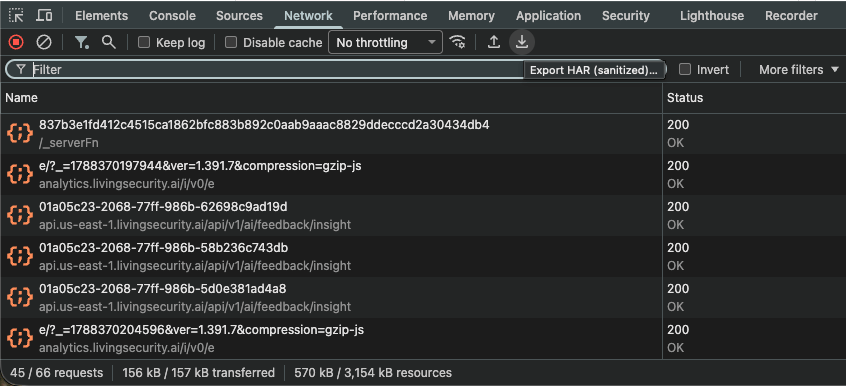
Select **Network**. Confirm that the round record button is red.
If the problem includes a page reload or redirect, select **Preserve log**.
Select **Clear network log** to remove requests that occurred before the capture.
Repeat the steps that caused the problem. Stop after the problem appears.
Select **Export HAR (sanitized)** in the Network panel toolbar. Save the file with the `.har` extension.
 ## Capture a HAR file in Edge
Right-click the page and select **Inspect**. You can also press **F12** or **Ctrl+Shift+I** on Windows and Linux. On macOS, press **Command+Option+I**.
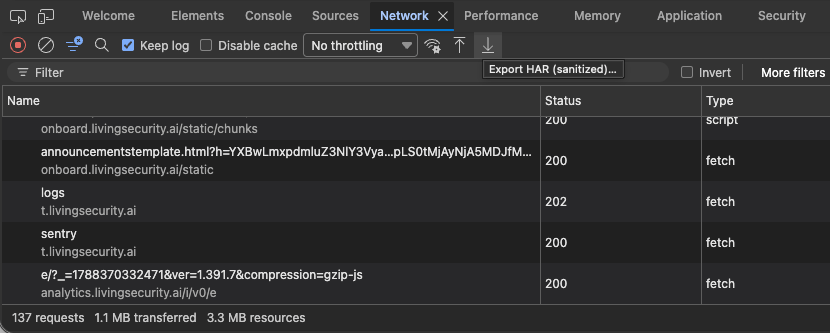
Select **Network**. Confirm that the round record button is red.
If the problem includes a page reload or redirect, select **Preserve log**.
Select **Clear network log** to remove requests that occurred before the capture.
Repeat the steps that caused the problem. Stop after the problem appears.
Select **Export HAR (sanitized)** in the Network tool toolbar. Save the file with the `.har` extension.
## Capture a HAR file in Edge
Right-click the page and select **Inspect**. You can also press **F12** or **Ctrl+Shift+I** on Windows and Linux. On macOS, press **Command+Option+I**.
Select **Network**. Confirm that the round record button is red.
If the problem includes a page reload or redirect, select **Preserve log**.
Select **Clear network log** to remove requests that occurred before the capture.
Repeat the steps that caused the problem. Stop after the problem appears.
Select **Export HAR (sanitized)** in the Network tool toolbar. Save the file with the `.har` extension.
 ## Capture a HAR file in Firefox
Right-click the page and select **Inspect**. You can also press **F12** or **Ctrl+Shift+I** on Windows and Linux. On macOS, press **Command+Option+I**.
Select **Network**. Confirm that network recording is active.
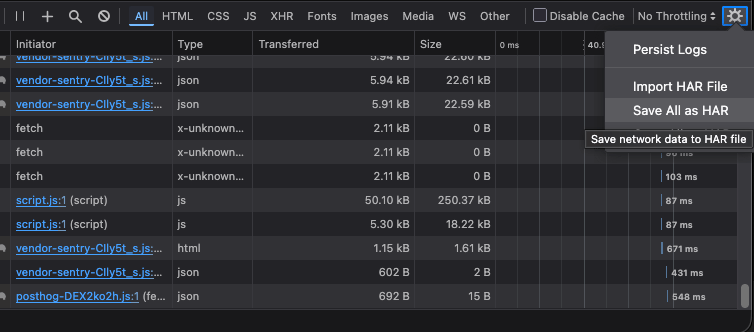
If the problem includes a page reload or redirect, open the Network Monitor settings and select **Persist Logs**.
Select the trash icon to remove requests that occurred before the capture.
Repeat the steps that caused the problem. Stop after the problem appears.
Right-click a request in the request list and select **Save All As HAR**. Save the file with the `.har` extension.
## Capture a HAR file in Firefox
Right-click the page and select **Inspect**. You can also press **F12** or **Ctrl+Shift+I** on Windows and Linux. On macOS, press **Command+Option+I**.
Select **Network**. Confirm that network recording is active.
If the problem includes a page reload or redirect, open the Network Monitor settings and select **Persist Logs**.
Select the trash icon to remove requests that occurred before the capture.
Repeat the steps that caused the problem. Stop after the problem appears.
Right-click a request in the request list and select **Save All As HAR**. Save the file with the `.har` extension.
 ## Send the HAR file to Support
1. Confirm that the file name ends in `.har`.
2. Record the time when the problem occurred, including your time zone.
3. Upload the file through the secure method that Living Security Support provides.
4. Delete the local copy when your organization's data-handling policy requires it.
Chrome and Edge remove some sensitive headers from sanitized HAR exports. Other sensitive data can remain in the file. If Support needs a HAR file with sensitive data, Support will give you separate capture and transfer instructions.
## Send the HAR file to Support
1. Confirm that the file name ends in `.har`.
2. Record the time when the problem occurred, including your time zone.
3. Upload the file through the secure method that Living Security Support provides.
4. Delete the local copy when your organization's data-handling policy requires it.
Chrome and Edge remove some sensitive headers from sanitized HAR exports. Other sensitive data can remain in the file. If Support needs a HAR file with sensitive data, Support will give you separate capture and transfer instructions.